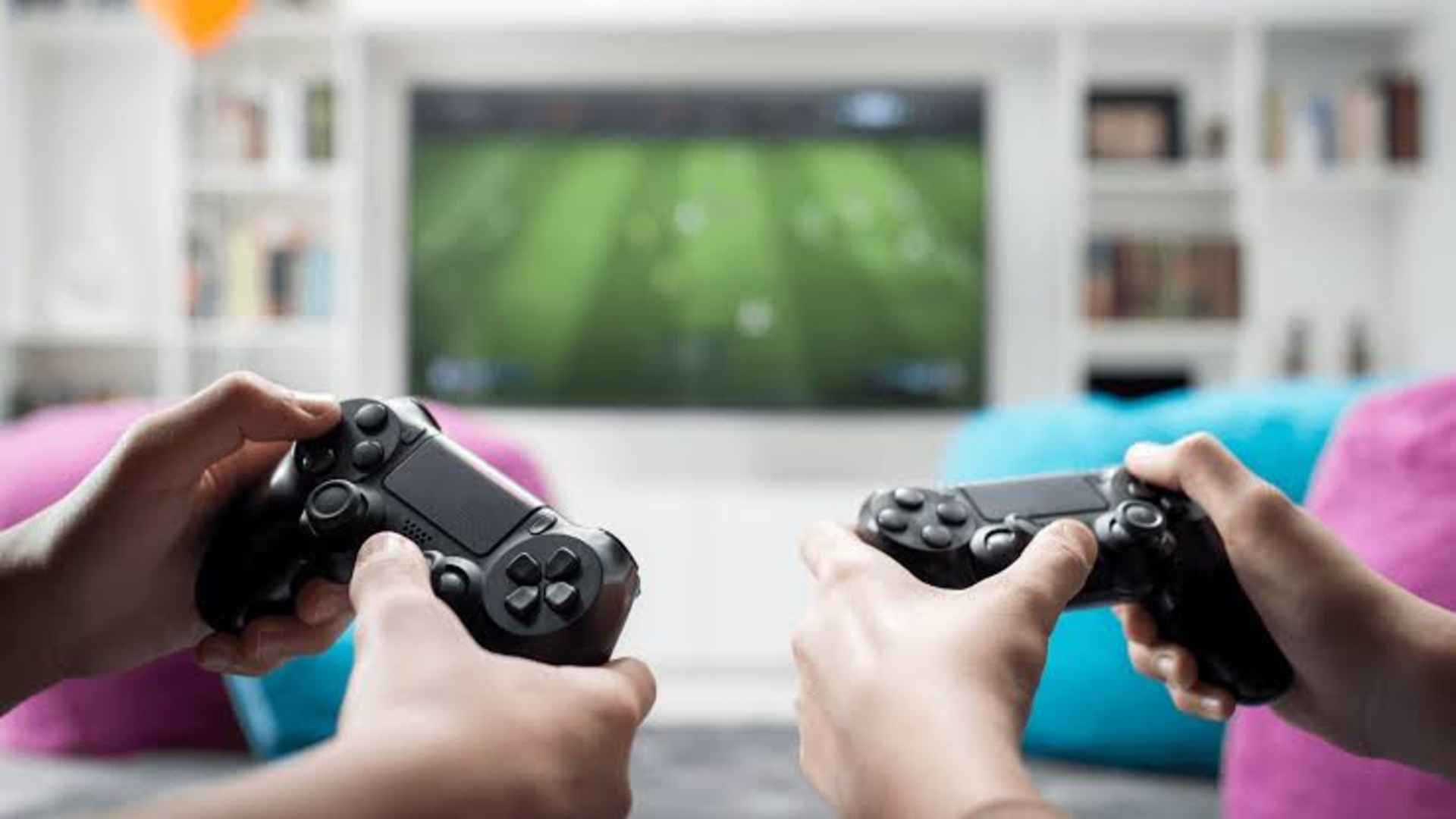
Enjoying an immersive audio experience on the PlayStation 5 often requires using a high-quality pair of wireless headphones. While the console boasts advanced Tempest 3D AudioTech capabilities, many gamers are surprised to learn that Sony restricts standard Bluetooth audio peripherals out of the box. Understanding the specific constraints and available workarounds ensures you can successfully integrate your favorite personal listening gear into your regular gaming sessions.
Understanding the PlayStation 5 Audio Limitations
The core reason behind the console's restrictive wireless system involves operational latency and overall bandwidth conservation. Standard Bluetooth connections often introduce a noticeable delay between the action on your television screen and the sound reaching your ears. Furthermore, the internal wireless antennas inside the console primarily prioritize managing multiple dual-sense controllers to keep gameplay inputs entirely seamless.
Because of these architectural choices, attempting to pair generic wireless audio devices directly through the system accessory menu will result in an unsupported hardware notification. Sony instead relies heavily on proprietary wireless transmission methods or dedicated external hardware adapters to maintain competitive latency levels. Recognizing this design philosophy helps explain why a simple software toggle is not sufficient for linking standard gear.
Utilizing External USB Bluetooth Transmitters
The most reliable method to bridge the hardware gap involves purchasing a dedicated USB Bluetooth transmitter designed specifically for gaming consoles. These small dongles plug directly into one of the available ports on the front or back of the system layout. They effectively handle the wireless encoding externally, passing the final signal to the platform as a standard wired USB audio source.
To configure this hardware setup, insert the external dongle into the powered console and press its physical sync button until it flashes rapidly. Immediately place your personal headphones into their corresponding discovery mode to let the two devices establish a direct wireless handshake. Once the status indicator light becomes solid, you will successfully route your game audio directly to your ears.
Leveraging the DualSense Controller Audio Jack
For players who prefer avoiding extra hardware dongles, utilizing a wired translation approach through the gamepad remains an incredibly simple alternative. Most wireless headphones include a physical backup port along their outer earcups to facilitate optional wired connections. You can leverage this physical option by using a standard auxiliary cable to bridge the distance directly to your hand.
Simply connect one end of the matching cable into your headset and insert the remaining jack into the port located on the bottom of the controller. The console will instantly recognize the connection and shift all sound processing directly to the gamepad wrapper interface. This method completely bypasses wireless transmission hurdles while still allowing you to relax comfortably away from the physical console.
Configuring Console Audio Output Settings
After establishing a reliable physical or wireless connection through your chosen workaround, you must verify the internal platform configurations. Open the main system configuration dashboard by navigating to the gear icon positioned in the upper right section of the display. Scroll down through the options to select the sound category, where you will find the active peripheral layout parameters.
Ensure the primary output device matches your specific adapter or controller attachment configuration rather than your default television speakers. You can also take this opportunity to enable the specialized three-dimensional sound staging algorithms to enhance directional audio clarity. Testing these variables beforehand ensures you experience consistent performance and avoid sudden signal loss during intense gameplay segments.